


Why Your Computer Cannot Find Your Printer: Common Causes and Fixes
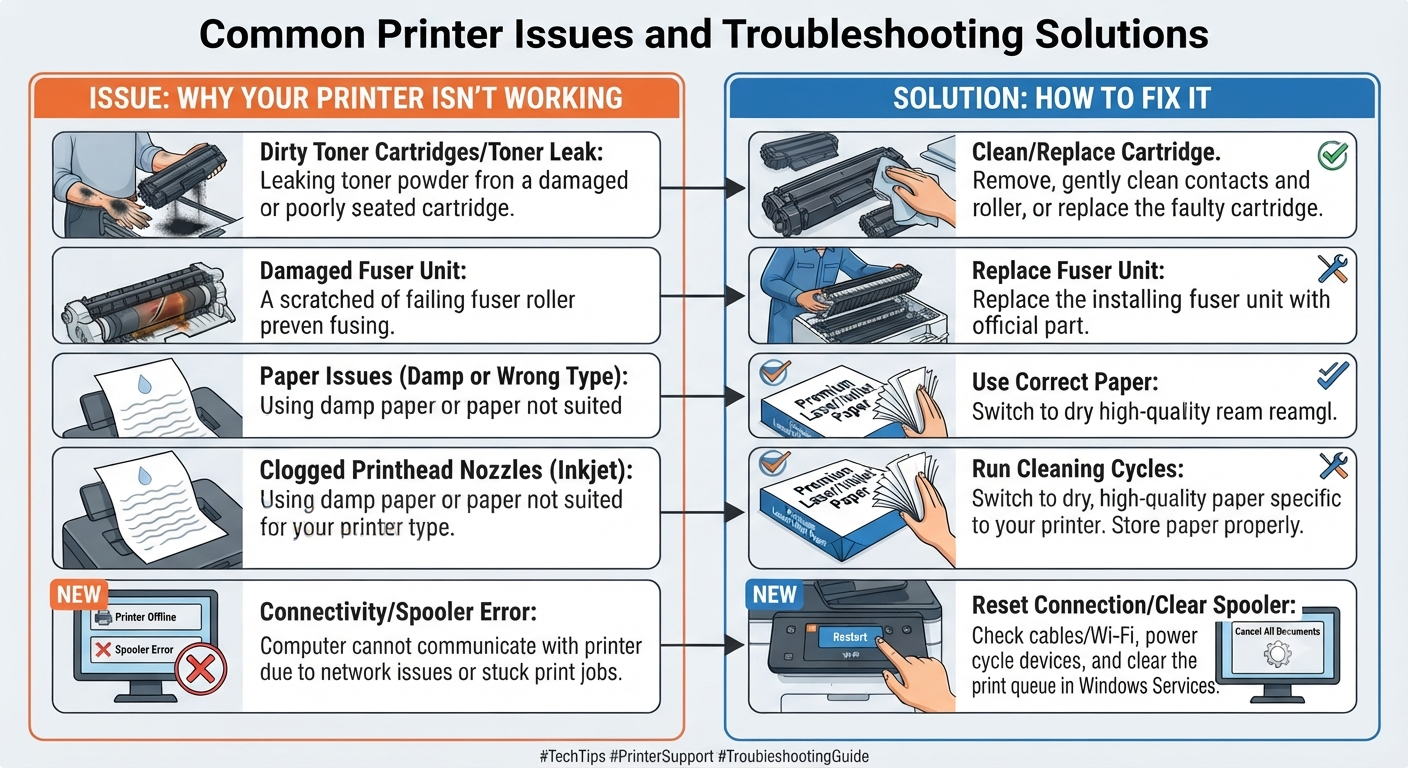
You have switched on the printer, connected it to your computer, and expected it to appear automatically, but nothing happens. A printer not detected message can be frustrating, particularly when the device was working normally before. Fortunately, the problem does not necessarily mean that the printer is damaged. Connection settings, cables, drivers, network configuration, and operating-system settings can all prevent a computer from recognising a printer.
Before replacing the printer, it is worth working through the most common causes.
Check the Printer's Power and Status
Start with the simplest possibility: make sure the printer is fully powered on.
Some printers take several seconds to complete their startup process. Check the display for warning messages, paper errors, low-supply alerts, or other conditions that could prevent the device from becoming available.
If the printer displays an error, resolve that issue first and then try adding the printer to the computer again.
A printer that is powered on but displaying a serious hardware error may not communicate correctly with the operating system.
Check a USB Connection
If you are using a USB printer, inspect the cable and its connections.
Disconnect the cable from the printer and computer, then reconnect it securely. If possible, try another USB port on the computer.
Avoid using a USB hub while diagnosing the problem. Connecting the printer directly to the computer removes an additional potential point of failure.
If another compatible USB cable is available, testing it can also help determine whether the original cable is damaged.
Check the Wireless Connection
For a wireless printer, make sure the printer is connected to the correct network.
A printer may have been connected to an old Wi-Fi network before a router replacement or password change. The computer may still be online while the printer is no longer connected to the same network.
Check the printer's network settings and confirm that the computer is using the same local network.
If the printer has recently been moved to another location, the wireless signal may also be weaker than before.
Restart the Printer and Computer
Temporary communication problems can sometimes prevent a printer from appearing correctly.
Turn off the printer and restart the computer. After the computer has fully started, turn the printer back on and wait for it to complete its startup process.
Then try searching for the printer again.
Although restarting is a basic step, it can clear temporary connection states and allow the operating system to detect the device again.
Remove an Old Printer Installation
Sometimes a computer contains an old printer installation that is no longer communicating correctly.
If the printer appears in the operating system but cannot be used, remove the existing installation and add the printer again.
This can be particularly useful after changing routers, updating the operating system, or reinstalling printer software.
Before removing the printer, make sure you know the exact model number so that you can reinstall the correct software afterward.
Check the Printer Software
Printer manufacturers often provide dedicated software for setting up and managing their devices.
If Windows or another operating system cannot automatically find the printer, the manufacturer's setup software may be able to locate it.
Download software only from the manufacturer's official website and select the package that matches your exact printer model and operating system.
Avoid installing drivers designed for similar models simply because their names appear close.
Check Network Discovery and Firewall Settings
Network-connected printers may depend on local network discovery features to become visible to a computer.
If the computer's network settings have changed, the printer may remain connected but not appear during setup.
Firewall or security software can also occasionally interfere with local device discovery.
Rather than permanently disabling security protection, check whether legitimate printer software or network communication has been blocked.
If the printer appears after changing a security setting, restore the appropriate protection and adjust the permitted application or network rule instead.
Test From Another Device
One of the easiest ways to narrow down the problem is to test the printer from another computer or compatible device.
If another device detects the printer normally, the issue is probably related to the original computer's software, network settings, or drivers.
If no device can find the printer, investigate the printer's network or physical connection.
This simple comparison can prevent unnecessary changes to a printer that is actually functioning correctly.
Look for Recent Changes
Think about what changed shortly before the problem started.
Did you install a Windows update? Replace the router? Change the Wi-Fi password? Move the printer? Install new security software?
Recent changes can provide useful clues.
For example, a printer that disappears immediately after a router replacement may have lost its network configuration. A printer that disappears after a software update may require a compatible driver or fresh installation.
When Professional Help Can Save Time
If you have checked the cables, network, printer software, and computer settings but the device still cannot be found, the problem may require more detailed diagnosis.
Professional printer troubleshooting can help determine whether the issue is related to the printer's hardware, operating system, drivers, network configuration, or communication settings.
Remote support can be especially useful when the printer itself is powered on and functioning but the computer cannot communicate with it. A technician can examine the relevant settings and guide the user through the necessary configuration.
Final Thoughts
A computer failing to detect a printer does not automatically indicate a hardware failure. USB cables, Wi-Fi settings, old installations, drivers, network discovery, and security software can all affect communication.
Start with the basic checks and work systematically. Test the printer from another device when possible, and pay attention to recent changes that may have triggered the problem.
If the printer remains invisible after these checks, a deeper diagnosis can identify the actual source of the connection problem and help restore normal communication without replacing the entire device.

 English
 Arabic
 French
 Spanish
 Portuguese
 Turkish
 Dutch
Dutch
 Italiano
 Russian
 Romaian
 Portuguese (Brazil)
 Greek
Greek
 Bengali