


TiviMate IPTV Free Trial: Firestick Installation Made Easy
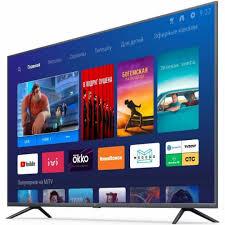
Streaming live television through a Firestick can provide a convenient alternative to traditional viewing methods. With a compatible IPTV player, we can organize playlists, channels, program guides, and favorites from one interface.
A TiviMate IPTV Free Trial can be useful for exploring the application's features before choosing a longer-term setup. TiviMate works primarily as an IPTV player, so users generally need a compatible playlist or account from an IPTV service.
This guide explains the Firestick installation process, playlist setup, EPG configuration, playback optimization, and common troubleshooting methods. Each section focuses on practical steps that can make the setup easier for beginners.
What Is TiviMate IPTV?
TiviMate is an IPTV player designed for Android-based television devices. It provides an interface for organizing compatible IPTV playlists rather than supplying television channels itself.
Users can typically manage channel categories, favorites, electronic program guides, and multiple playlists through the application.
The television-focused interface works particularly well with remote controls. Therefore, Firestick users can browse channels without constantly switching between applications.
Before starting, we should understand the difference between an IPTV player and an IPTV service. The player organizes and displays compatible streams, while the service supplies the channel access.
What We Need Before Installation
A smooth Firestick setup requires a few basic components. First, we need a compatible Fire TV device with an active internet connection.
Second, we need valid IPTV playlist information. Depending on the service, this may include an M3U playlist URL or compatible account credentials.
Third, the Firestick should have enough available storage. Removing unused applications can create additional space when necessary.
Finally, we should keep the Firestick software updated. Current system software can improve application compatibility and device stability.
TiviMate IPTV Free Trial: Check Firestick Compatibility
Before installing any application, we should confirm that the Firestick supports the required software.
Fire TV devices use an Android-based operating environment, although application availability can differ between models and software versions.
Open the Firestick home screen and search for TiviMate. If the application appears through the available application store, we can proceed with the standard installation method.
If direct availability differs on the device, we should use only legitimate and trusted installation methods. Unknown application packages can introduce unnecessary security risks.
How to Install TiviMate on Firestick
Start by turning on the Firestick and opening the home screen. Then use the search function to find the application.
Enter TiviMate into the search field. Review the available results and select the legitimate application when available.
Choose the installation option and wait for the process to finish. After installation, open TiviMate from the application list.
The first launch may require additional setup. Keep the IPTV playlist information nearby so that configuration can continue without interruptions.
The interface can vary between Firestick versions. Therefore, follow the labels displayed on the specific device.
Alternative Installation Considerations
Application availability can change based on device software and distribution policies. Some Firestick users may encounter situations where an application does not appear directly.
We should avoid downloading modified or suspicious APK files from unknown sources. Such files can expose the device to security and privacy problems.
If an alternative installation method is necessary, use a trusted and verified source. After installation, remove unnecessary files to preserve Firestick storage.
Security should remain important throughout the setup process.
TiviMate IPTV Free Trial: Add an IPTV Playlist
After opening TiviMate, select the option to add a playlist. The application may present several playlist methods.
Choose the method supported by the IPTV provider. Then enter the required details carefully.
An M3U URL may contain a long string of characters. Copying the information accurately can prevent unnecessary configuration errors.
Some providers use username, password, and server information instead. Enter each field exactly as provided.
Avoid adding extra spaces to the credentials. A small typing error can prevent the playlist from loading.
Once the details are submitted, allow the application to process the available channel information.
Using Xtream Codes Login Information
Some IPTV services provide login credentials through the Xtream Codes format. When supported, this method can simplify playlist configuration.
Select the appropriate login option and enter the server address. Then enter the username and password provided by the IPTV service.
Review every field before submitting the information. Incorrect credentials can produce authentication errors.
If the playlist fails to load, verify that the account remains active. Then check whether the server address has been entered correctly.
Organizing IPTV Channels
Large IPTV playlists can contain thousands of channels. Without organization, finding specific programming can become frustrating.
TiviMate provides tools for creating a more manageable viewing environment.
We can place frequently watched channels into favorites. We can also use categories to separate different types of programming.
For example, categories can help separate entertainment, news, sports, regional channels, and other content.
Keeping favorites limited to frequently watched channels makes daily navigation much faster.
Setting Up the Electronic Program Guide
The electronic program guide, commonly called EPG, displays current and upcoming program information.
If the IPTV provider supplies EPG information, we can configure it through the relevant application settings.
After adding the guide information, refresh the EPG. The application may require some time to download the available schedule.
If certain channels lack program information, the provider's EPG database may not contain those listings.
We should avoid repeatedly reinstalling TiviMate for an EPG problem. Refreshing or correcting the guide information may be enough.
Improving Firestick IPTV Playback
Stable connectivity plays an important role in live IPTV streaming. We should test the Firestick's internet connection before changing advanced settings.
If possible, keep the Firestick within a strong wireless signal area. Distance and physical obstacles can weaken Wi-Fi performance.
An Ethernet connection can provide additional stability when compatible equipment is available.
We should also reduce unnecessary network activity while streaming. Multiple high-bandwidth activities can compete for available bandwidth.
TiviMate IPTV Free Trial: Reduce Buffering
Buffering occurs when the device cannot receive enough video data for uninterrupted playback.
The first step should involve testing several channels. If one channel buffers while others work correctly, the problem may involve that specific stream.
If every channel buffers, we should investigate the network connection and Firestick performance.
Restarting the router and Firestick can resolve temporary connectivity problems. After restarting, test the same channels again.
We should also avoid automatically choosing the highest available video quality. Higher-resolution streams require additional bandwidth and device resources.
Selecting Appropriate Video Quality
Higher resolution does not always produce a better viewing experience. A stable stream at a suitable resolution can look better than an unstable high-resolution stream.
We should select quality based on the capabilities of the television, Firestick, network, and IPTV source.
The original stream must also contain the desired resolution. An IPTV player cannot create genuine native 4K or 8K detail from low-resolution content.
When playback repeatedly buffers, testing a lower-resolution stream can help determine whether bandwidth is contributing to the problem.
Adjusting Decoder Settings
Video decoding determines how the device processes incoming video. Compatible Firestick hardware may perform better with hardware decoding.
However, stream formats can vary. A specific channel may work better with another available decoding method.
If a stream freezes, displays artifacts, or produces unusual playback, we can test another decoder option.
Only change one setting at a time. This makes it easier to identify the configuration that provides the best result.
If an adjustment creates additional problems, return to the previous configuration.
Managing Firestick Storage
Firestick devices have limited storage capacity. Too many applications can reduce available space and affect overall responsiveness.
We should remove applications that are no longer needed. Keeping unnecessary software installed provides little benefit.
Temporary application data can also accumulate over time. When appropriate, clearing cache can help recover some storage.
However, clearing application data can remove saved settings. We should confirm that playlist credentials are available before performing a full reset.
TiviMate IPTV Free Trial: Manage Multiple Playlists
TiviMate can be useful when users manage several compatible IPTV playlists.
However, too many playlists can make navigation complicated. We should remove inactive or unnecessary sources.
Clear playlist names can also reduce confusion. Organize each source according to its intended purpose.
Favorites should remain focused on frequently watched channels. This approach keeps the interface clean and practical.
How to Fix Playlist Loading Problems
Playlist loading problems can have several causes. Incorrect credentials are among the most common.
First, check the playlist URL or login details. Ensure that there are no extra spaces or missing characters.
Next, verify that the IPTV account remains active. An expired subscription can prevent authentication.
Restart TiviMate after correcting the information. Then allow sufficient time for the application to retrieve the channel database.
If the problem continues, test the same credentials through another compatible IPTV player. This can help identify whether the problem originates from the playlist or the application.
Fixing Missing Channels
Sometimes a playlist loads successfully but certain channels do not appear.
We should refresh the playlist first. Then check whether the missing channels belong to a specific category.
If only certain channels are unavailable, the IPTV provider may have changed its channel list.
We should also confirm that the subscription includes access to those channels. The IPTV player cannot display content that the source does not provide.
Fixing Audio and Video Synchronization
Audio synchronization problems can affect the viewing experience even when the video stream works correctly.
Start by testing another channel. If other channels remain synchronized, the issue may be specific to the original stream.
We should also check television audio settings when using external speakers or soundbars.
Restarting playback can sometimes resolve temporary synchronization issues.
If the problem occurs across multiple streams, review the Firestick's audio output configuration.
Keeping Firestick Software Updated
System updates can improve performance, security, and compatibility. We should check for available Firestick updates periodically.
Application updates can also introduce bug fixes and improvements.
However, we should only use legitimate application versions. Modified versions can create compatibility and security problems.
Keeping the device and applications current provides a stronger foundation for reliable IPTV playback.
TiviMate IPTV Free Trial: Practical Setup Checklist
Before finishing the installation, we should review the complete configuration.
-
Confirm Firestick compatibility.
-
Install the legitimate TiviMate application.
-
Maintain a stable internet connection.
-
Prepare valid IPTV playlist information.
-
Add the playlist carefully.
-
Confirm that channels load correctly.
-
Configure EPG information when available.
-
Organize favorite channels.
-
Test multiple streams.
-
Review playback settings only when needed.
-
Keep Firestick software updated.
-
Protect IPTV account credentials.
This checklist helps reduce common installation mistakes.
Common Firestick IPTV Mistakes
One common mistake involves entering incorrect playlist credentials. Long URLs and passwords require careful copying.
Another mistake involves changing several playback settings simultaneously. This can make troubleshooting unnecessarily difficult.
Users may also expect TiviMate to provide channels automatically. The application primarily functions as a player, while channel access generally comes from a separate service.
Choosing the highest resolution regardless of network conditions can also cause buffering.
Finally, downloading unknown application files can expose the device to security risks.
Security Tips for IPTV Users
We should keep IPTV credentials private. Never share account passwords or playlist URLs publicly.
Applications should come from trusted sources. Avoid modified packages that promise premium features without verification.
The Firestick should also receive available security and system updates.
When using an IPTV service, we should choose legitimate providers and ensure that the content we access is properly authorized.
A secure setup protects both personal information and the streaming device.
Conclusion
Setting up IPTV on Firestick can be straightforward when we follow a structured process. The right player, valid playlist information, stable internet, and compatible hardware provide the foundation.
A TiviMate IPTV Free Trial can help users become familiar with the application's interface before making longer-term decisions.
We should begin by confirming Firestick compatibility and installing the application through a trusted source. Afterward, adding the playlist and configuring the EPG can create a more organized television experience.
Playback quality depends heavily on network stability and stream quality. Therefore, we should test multiple channels before changing advanced settings.
When buffering occurs, checking the network, restarting the device, testing another stream, and reviewing video quality can help identify the cause.
The best setup remains simple and reliable. With organized playlists, sensible playback settings, updated software, and secure account practices, Firestick users can enjoy a more convenient IPTV experience.
FAQs
1. Does TiviMate provide IPTV channels?
No. TiviMate primarily functions as an IPTV player. Users generally need a compatible playlist or account from an IPTV service.
2. Can TiviMate be installed on Firestick?
Compatible Fire TV devices can support TiviMate, depending on current application availability and device software.
3. What do we need for a TiviMate IPTV setup?
We need a compatible Firestick, internet connection, TiviMate installation, and valid IPTV playlist information.
4. Why does IPTV buffer on Firestick?
Buffering can result from unstable Wi-Fi, network congestion, provider-side issues, device limitations, or demanding video streams.
5. Is TiviMate IPTV Free Trial the same as an IPTV service trial?
No. A TiviMate trial relates to the player or its features, while an IPTV service trial relates to channel access provided by a separate service.

 Arabic
 French
 Spanish
 Portuguese
 Deutsch
 Turkish
 Dutch
Dutch
 Italiano
 Russian
 Romaian
 Portuguese (Brazil)
 Greek
Greek
 Bengali