


Why Is My Phone’s Charging Icon Showing but the Battery Not Increasing?
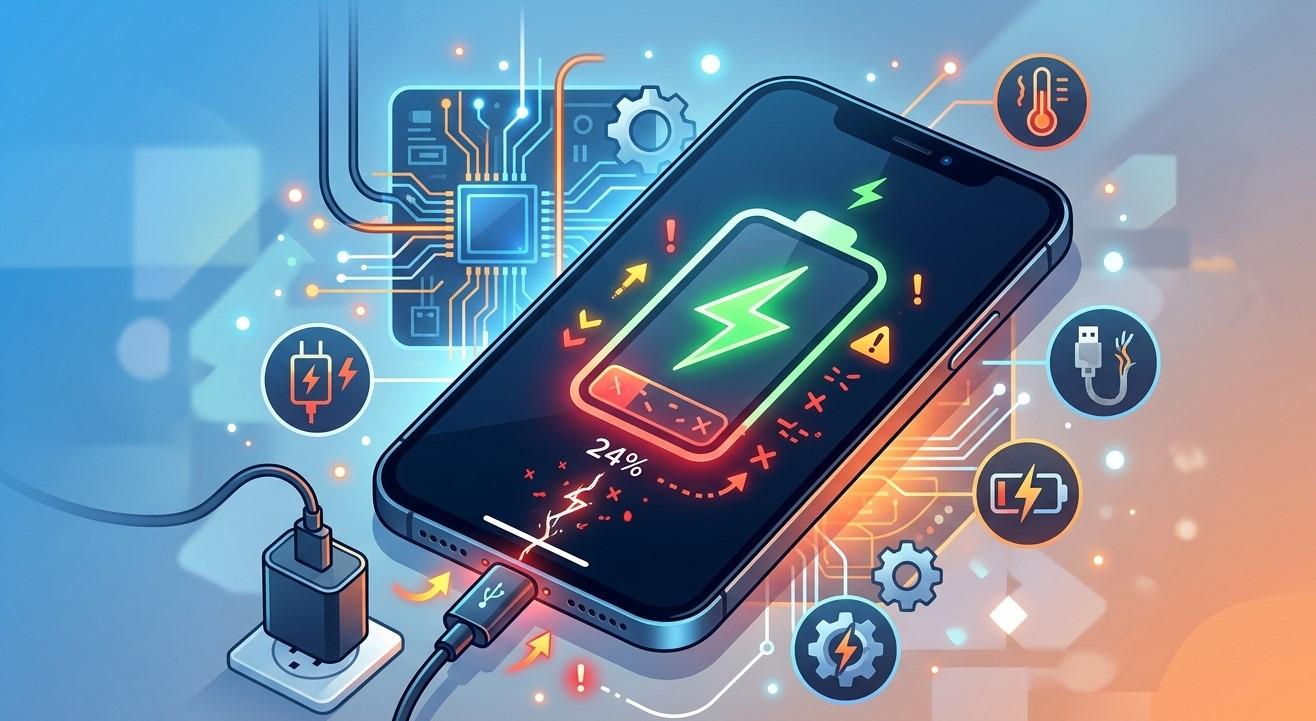
Seeing the charging icon on your phone usually means the device is receiving power. However, it can be frustrating when the battery percentage stays the same or continues to decrease even though the phone says it is charging. This problem can happen with both iPhones and Android smartphones and may have several possible causes.
For customers looking for Cell Phone Repair in Douglasville, GA, understanding why a phone shows the charging symbol without actually increasing its battery level can help identify whether the issue is something simple or requires professional attention. Sometimes the problem is caused by a damaged cable, dirty charging port, weak power adapter, or software glitch.
In other cases, the battery, charging port, or internal charging components may be damaged. If you use an iPhone, professional iPhone repair in Douglasville, GA may be necessary when basic troubleshooting does not solve the problem. Samsung users may also need Samsung Phone Repair Douglasville, GA, while tablet owners experiencing similar charging issues can consider Samsung Tablet Repair in Douglasville, GA.
Why Is My Phone Showing the Charging Icon but Not Increasing?
When the charging symbol appears, your phone is detecting some form of electrical connection. However, detecting a charger does not necessarily mean the battery is receiving enough power to increase its charge level.
Several factors can cause this problem, including:
-
Damaged charging cables
-
Faulty power adapters
-
Dirty or damaged charging ports
-
Weak power sources
-
Battery degradation
-
Overheating
-
Software glitches
-
Background applications using excessive power
-
Wireless charging problems
-
Internal hardware damage
The good news is that some causes can be fixed with simple troubleshooting. Before assuming that the battery needs to be replaced, try the following solutions.
1. Check the Charging Cable
One of the first things to inspect is your charging cable. Cables can become damaged internally even when they appear normal on the outside.
Look for signs such as:
-
Frayed sections
-
Bent connectors
-
Loose ends
-
Cuts or cracks
-
Intermittent charging
-
Charging only when positioned at a certain angle
Try using another compatible, high-quality charging cable. If the battery begins increasing normally with the replacement cable, the original cable was probably the problem.
Avoid repeatedly bending or twisting charging cables because this can damage the internal wires.
2. Try a Different Power Adapter
The charging adapter is another possible cause. A weak, damaged, or incompatible adapter may provide insufficient power for your phone.
For example, your phone may recognize that a charger has been connected but receive power too slowly to increase the battery percentage.
Try another compatible wall adapter and connect it directly to a reliable power outlet. If charging improves, the original adapter may need to be replaced.
Avoid using damaged or questionable chargers, especially if they become unusually hot during use.
3. Clean the Charging Port
A dirty charging port is a common reason for charging problems. Dust, lint, dirt, and other debris can prevent the charging connector from making proper contact with the internal contacts.
If the connection is incomplete, your phone may display the charging icon while receiving very little power.
Turn off your phone before inspecting the port. Look inside carefully for visible debris. Avoid forcing sharp metal objects into the charging port because they can damage delicate contacts.
If the port is heavily clogged or appears damaged, professional cleaning or repair may be safer.
4. Restart Your Phone
A temporary software problem can sometimes interfere with battery reporting or charging management.
Restart your smartphone and connect the charger again after it powers back on. A restart can clear temporary software processes and may resolve minor charging-related glitches.
If the battery percentage begins increasing normally after restarting, the issue may have been software-related.
However, if the charging icon appears but the percentage remains unchanged repeatedly, continue troubleshooting.
5. Stop Using the Phone While Charging
Heavy phone usage can consume power almost as quickly as the charger provides it.
This can happen when you are:
-
Playing demanding games
-
Streaming high-resolution video
-
Using GPS navigation
-
Recording video
-
Running multiple applications
-
Using mobile data heavily
In these situations, the phone may technically be charging while the battery percentage barely increases.
Try locking the phone and leaving it connected to the charger for 20–30 minutes. If the battery starts increasing when the phone is idle, excessive power consumption may have been contributing to the problem.
6. Check for Overheating
Temperature can significantly affect charging performance. Smartphones may reduce or temporarily stop charging when they become too hot.
Your phone may overheat because of direct sunlight, demanding applications, fast charging, a damaged battery, or environmental temperatures.
If the phone feels unusually hot, disconnect the charger and allow it to cool naturally. Keep it in a cool, dry location away from direct sunlight.
Do not place a hot phone in a refrigerator or freezer. Sudden temperature changes can create condensation and cause additional damage.
If your phone frequently becomes hot while charging, professional inspection may be necessary.
7. Check the Battery Health
As smartphone batteries age, their ability to hold and receive charge can decrease.
A worn-out battery may cause symptoms such as:
-
Battery percentage staying stuck
-
Rapid battery drain
-
Unexpected shutdowns
-
Slow charging
-
Excessive heat
-
Battery percentage jumping unexpectedly
-
Phone shutting down at a relatively high percentage
Many modern smartphones provide battery health information in their settings. Check the battery section to see whether the device reports reduced capacity or another battery-related warning.
If the battery is significantly degraded, replacing it may restore more reliable charging performance.
8. Try Charging From a Wall Outlet
If you are charging from a computer, car USB port, power bank, or another low-power source, the phone may not receive enough energy to charge efficiently.
Connect the phone directly to a reliable wall outlet using a compatible adapter and cable.
If the battery starts increasing normally from the wall outlet, the original power source may not have been providing enough power.
This is particularly important when using a phone heavily while connected to a low-power USB source.
9. Check for Software Updates
Software problems can occasionally affect battery management and charging behavior.
Check whether your smartphone has an available operating system update. Manufacturers release updates that can correct bugs, improve power management, and enhance device compatibility.
Before installing a major update, make sure your important data is backed up and the phone has enough battery power or remains safely connected to a charger.
If the charging problem began immediately after an update, another software update may eventually resolve the issue.
10. Remove Unnecessary Accessories
Certain accessories can sometimes interfere with charging. Wireless charging stands, magnetic accessories, thick cases, or poorly aligned wireless chargers may prevent proper charging.
If you use wireless charging, remove the phone case temporarily and make sure the phone is correctly positioned on the charging pad.
For wired charging, remove accessories that could put pressure on the charging connector or cause the cable to sit loosely in the port.
Test the phone without accessories to determine whether the charging behavior changes.
11. Test Wireless and Wired Charging Separately
If your smartphone supports wireless charging, testing both charging methods can help identify the source of the problem.
For example, if wired charging does not increase the battery but wireless charging works normally, the charging port, cable, or wired charging components may be involved.
On the other hand, if neither wired nor wireless charging works properly, the battery or internal charging system may need further inspection.
This simple comparison can give a technician useful information when diagnosing the device.
12. Look for Signs of Charging Port Damage
A charging port can become worn or damaged through repeated use. You may notice that the cable feels loose, charging stops when the phone moves, or the phone only charges when the cable is positioned in a particular way.
These are warning signs that the port may need professional attention.
Do not repeatedly force the cable into the port or bend it to maintain a connection. Doing so can worsen damage to the charging connector or internal components.
When Should You Seek Professional Phone Repair?
If your phone continues showing the charging icon without increasing the battery percentage after trying different cables, adapters, outlets, and basic troubleshooting steps, professional diagnosis may be necessary.
You should especially consider professional repair if:
-
The charging port is physically damaged.
-
The phone only charges at certain angles.
-
The battery percentage keeps dropping while plugged in.
-
The phone becomes very hot while charging.
-
The battery is swollen or visibly damaged.
-
The device recently suffered liquid damage.
-
The phone was recently dropped.
-
Both wired and wireless charging fail.
-
The charging problem happens with multiple chargers.
A technician can inspect the charging port, battery, charging circuitry, and other internal components to determine the actual cause.
How to Prevent Future Charging Problems
Good charging habits can help extend the life of your phone's battery and charging components.
Use high-quality cables and compatible adapters. Avoid repeatedly bending the cable near the connector, and keep the charging port free from dust and debris.
Try not to use demanding applications continuously while charging, particularly if the phone becomes hot. Keep your device away from extreme temperatures and avoid charging it in direct sunlight.
You should also address loose charging connections early. A small charging-port problem can become more serious if the connector is repeatedly forced or used at an unusual angle.
Regularly updating your phone's software and monitoring battery health can also help identify problems before they become severe.
Why Choose Mobile Device Techs for Charging Problems?
Charging problems can be caused by something as simple as a damaged cable or as serious as a failing battery or charging component. Getting an accurate diagnosis is important before replacing parts unnecessarily.
Mobile Device Techs can assist customers experiencing persistent smartphone and tablet charging problems. Customers searching for Cell Phone Repair in Douglasville, GA can seek professional help when basic troubleshooting does not restore normal charging.
For iPhone owners, iPhone repair in Douglasville, GA can be a useful option when the device continues showing charging problems despite using different cables and adapters. Samsung users experiencing battery or charging issues can consider Samsung Phone Repair Douglasville, GA.
Tablet owners can also experience similar problems. If a Samsung tablet shows the charging icon but does not increase its battery percentage, Samsung Tablet Repair in Douglasville, GA may help identify whether the issue involves the charging port, battery, cable, or internal hardware.
Final Thoughts
When your phone shows the charging icon but the battery percentage does not increase, the problem does not necessarily mean that the battery has completely failed. A damaged cable, weak adapter, dirty charging port, overheating, excessive power usage, software issue, or worn-out battery can all contribute to the problem.
Start by testing another compatible cable and adapter, cleaning the charging port carefully, restarting the phone, reducing heavy usage, and checking for overheating or software updates. If the battery still refuses to increase, especially when using multiple chargers, professional diagnosis is a sensible next step.
For customers needing Cell Phone Repair in Douglasville, GA, Samsung Tablet Repair in Douglasville, GA, Samsung Phone Repair Douglasville, GA, or iPhone repair in Douglasville, GA, Mobile Device Techs can provide professional assistance for persistent charging and device problems. Addressing charging issues early can help prevent further battery or hardware damage and keep your smartphone working reliably.

 English
 Arabic
 French
 Spanish
 Portuguese
 Deutsch
 Dutch
Dutch
 Italiano
 Russian
 Romaian
 Portuguese (Brazil)
 Greek
Greek
 Bengali